Logto is an Auth0 alternative designed for modern apps and SaaS products. It offers both Cloud and Open-source services to help you quickly launch your identity and management (IAM) system. Enjoy authentication, authorization, and multi-tenant management all in one.
We recommend starting with a free development tenant on Logto Cloud. This allows you to explore all the features easily.
In this article, we will go through the steps to quickly build the GitHub (GitHub App) sign-in experience (user authentication) with Flutter and Logto.
Prerequisites
- A running Logto instance. Check out the introduction page to get started.
- Basic knowledge of Flutter.
- A usable GitHub (GitHub App) account.
Create an application in Logto
Logto is based on OpenID Connect (OIDC) authentication and OAuth 2.0 authorization. It supports federated identity management across multiple applications, commonly called Single Sign-On (SSO).
To create your Native app application, simply follow these steps:
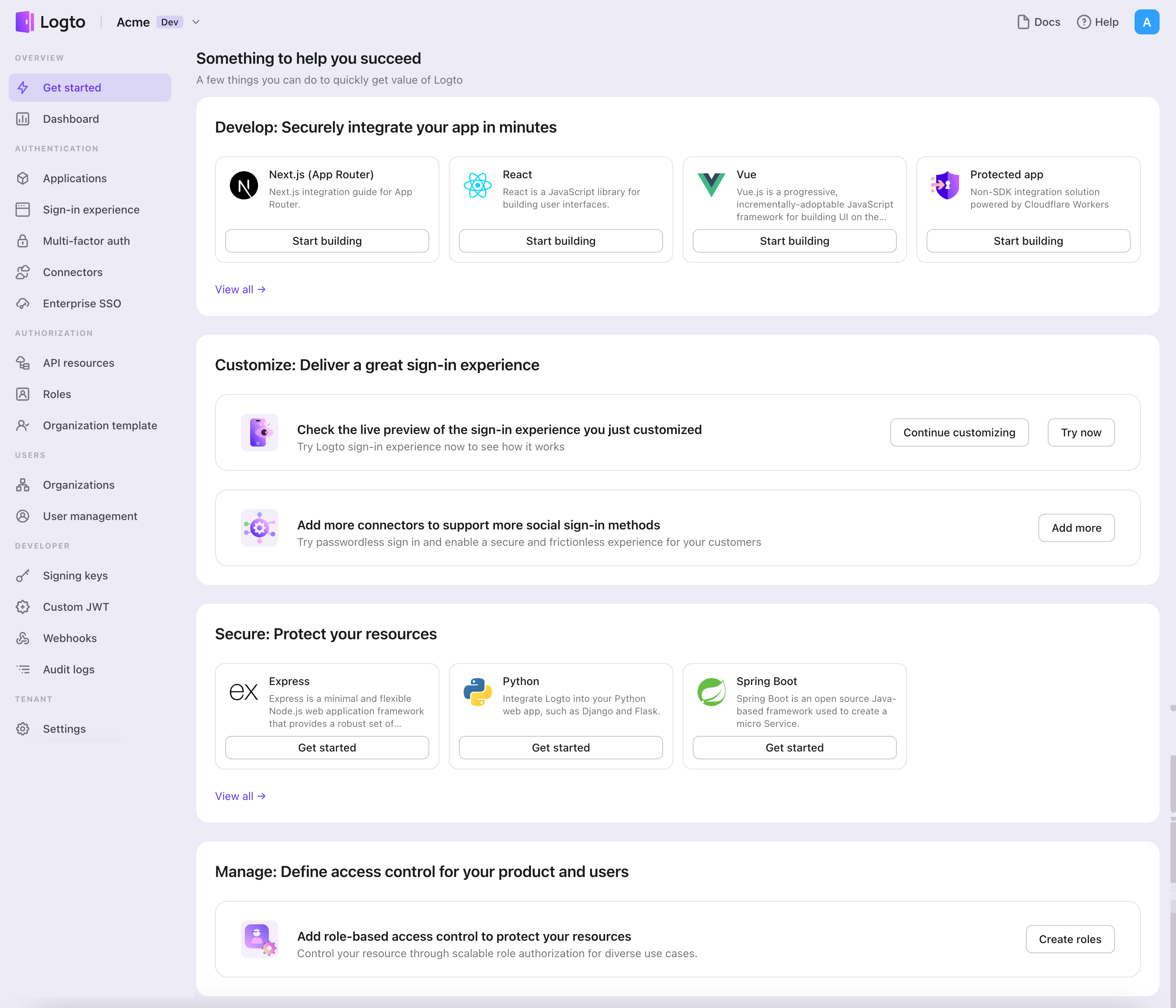
- Open the Logto Console. In the "Get started" section, click the "View all" link to open the application frameworks list. Alternatively, you can navigate to Logto Console > Applications, and click the "Create application" button.
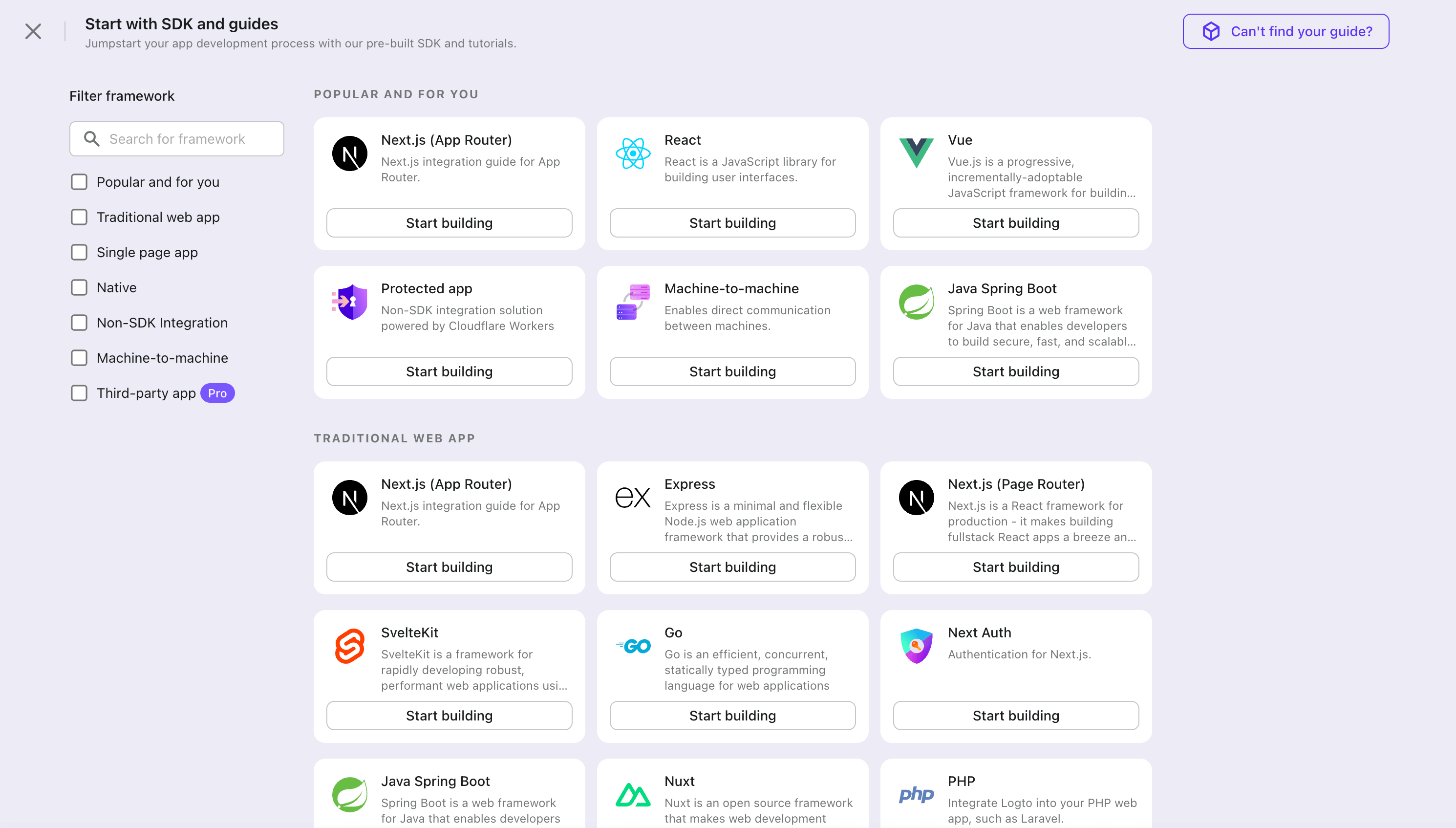
- In the opening modal, click the "Native app" section or filter all the available "Native app" frameworks using the quick filter checkboxes on the left. Click the "Flutter" framework card to start creating your application.
- Enter the application name, e.g., "Bookstore," and click "Create application".
🎉 Ta-da! You just created your first application in Logto. You'll see a congrats page which includes a detailed integration guide. Follow the guide to see what the experience will be in your application.
Integrate Flutter with Logto
- The SDK package is available on pub.dev and Logto GitHub repository.
- The sample project is built using Flutter material. You can find it on pub.dev.
- This SDK is compatible with Flutter applications on iOS, Android, and Web platforms. Compatibility with other platforms has not been tested.
Installation
- pub.dev
- GitHub
You can install the logto_dart_sdk package directly using the pub package manager.
Run the following command under your project root:
flutter pub add logto_dart_sdk
Or add the following to your pubspec.yaml file:
dependencies:
  logto_dart_sdk: ^3.0.0
Then run:
flutter pub get
If you prefer to fork your own version of the SDK, you can clone the repository directly from GitHub.
git clone https://github.com/logto-io/dart
Dependency and configurations
SDK version compatibility
| Logto SDK version | Dart SDK version | Dart 3.0 compatible |
|---|---|---|
| < 2.0.0 | >= 2.17.6 < 3.0.0 | false |
| >= 2.0.0 < 3.0.0 | >= 3.0.0 | true |
| >= 3.0.0 | >= 3.6.0 | true |
flutter_secure_storage set up
Under the hood, this SDK uses flutter_secure_storage to implement the cross-platform persistent secure token storage.
- Keychain is used for iOS
- AES encryption is used for Android.
Config Android version
Set the android:minSdkVersion to >= 18 in your project's android/app/build.gradle file.
  android {
      ...

      defaultConfig {
          ...
          minSdkVersion 18
          ...
      }
  }
Disable auto backup on Android
By default Android backups data on Google Drive. It can cause exception java.security.InvalidKeyException:Failed to unwrap key. To avoid this,
-
To disable auto backup, go to your app manifest file and set the
android:allowBackupandandroid:fullBackupContentattributes tofalse.AndroidManifest.xml<manifest ... >
...
<application
android:allowBackup="false"
android:fullBackupContent="false"
...
>
...
</application>
</manifest> -
Exclude
sharedprefsfromFlutterSecureStorage.If you need to keep the
android:fullBackupContentfor your app rather than disabling it, you can exclude thesharedprefsdirectory from the backup. See more details in the Android documentation.In your AndroidManifest.xml file, add the android:fullBackupContent attribute to the
<application>element, as shown in the following example. This attribute points to an XML file that contains backup rules.AndroidManifest.xml<application ...
android:fullBackupContent="@xml/backup_rules">
</application>Create an XML file called
@xml/backup_rulesin theres/xml/directory. In this file, add rules with the<include>and<exclude>elements. The following sample backs up all shared preferences except device.xml:@xml/backup_rules<?xml version="1.0" encoding="utf-8"?>
<full-backup-content>
<exclude domain="sharedpref" path="FlutterSecureStorage"/>
</full-backup-content>
Please check flutter_secure_storage for more details.
flutter_web_auth_2 set up
Behind the scenes, this SDK uses flutter_web_auth_2 to authenticate users with Logto. This package provides a simple way to authenticate users with Logto using the system webview or browser.
This plugin uses ASWebAuthenticationSession on iOS 12+ and macOS 10.15+, SFAuthenticationSession on iOS 11, Chrome Custom Tabs on Android and opens a new window on Web.
-
iOS: No additional setup required
-
Android: Register the callback url on Android
In order to capture the callback url from Logto's sign-in web page, you will need to register your sign-in redirectUri to your
AndroidManifest.xmlfile.AndroidManifest.xml<manifest>
<application>
<activity
android:name="com.linusu.flutter_web_auth_2.CallbackActivity"
android:exported="true">
<intent-filter android:label="flutter_web_auth_2">
<action android:name="android.intent.action.VIEW" />
<category android:name="android.intent.category.DEFAULT" />
<category android:name="android.intent.category.BROWSABLE" />
<data android:scheme="YOUR_CALLBACK_URL_SCHEME_HERE" />
</intent-filter>
</activity>
</application>
</manifest> -
Web browser: Create an endpoint to handle the callback URL
If you are using the web platform, you need to create an endpoint to handle the callback URL and send it back to the application using the
postMessageAPI.callback.html<!doctype html>
<title>Authentication complete</title>
<p>Authentication is complete. If this does not happen automatically, please close the window.</p>
<script>
function postAuthenticationMessage() {
const message = {
'flutter-web-auth-2': window.location.href,
};
if (window.opener) {
window.opener.postMessage(message, window.location.origin);
window.close();
} else if (window.parent && window.parent !== window) {
window.parent.postMessage(message, window.location.origin);
} else {
localStorage.setItem('flutter-web-auth-2', window.location.href);
window.close();
}
}
postAuthenticationMessage();
</script>
Please check the setup guide in the flutter_web_auth_2 package for more details.
Integration
Init LogtoClient
Import the logto_dart_sdk package and initialize the LogtoClient instance at the root of your application.
import 'package:logto_dart_sdk/logto_dart_sdk.dart';
import 'package:http/http.dart' as http;
void main() async {
WidgetsFlutterBinding.ensureInitialized();
runApp(const MyApp());
}
class MyApp extends StatelessWidget {
const MyApp({Key? key}) : super(key: key);
Widget build(BuildContext context) {
return const MaterialApp(
title: 'Flutter Demo',
home: MyHomePage(title: 'Logto Demo Home Page'),
);
}
}
class MyHomePage extends StatefulWidget {
const MyHomePage({Key? key, required this.title}) : super(key: key);
final String title;
State<MyHomePage> createState() => _MyHomePageState();
}
class _MyHomePageState extends State<MyHomePage> {
late LogtoClient logtoClient;
void render() {
// state change
}
// LogtoConfig
final logtoConfig = const LogtoConfig(
endpoint: "<your-logto-endpoint>",
appId: "<your-app-id>"
);
void _init() {
logtoClient = LogtoClient(
config: logtoConfig,
httpClient: http.Client(), // Optional http client
);
render();
}
void initState() {
super.initState();
_init();
}
// ...
}
Implement sign-in
Before we dive into the details, here's a quick overview of the end-user experience. The sign-in process can be simplified as follows:
- Your app invokes the sign-in method.
- The user is redirected to the Logto sign-in page. For native apps, the system browser is opened.
- The user signs in and is redirected back to your app (configured as the redirect URI).
Regarding redirect-based sign-in
- This authentication process follows the OpenID Connect (OIDC) protocol, and Logto enforces strict security measures to protect user sign-in.
- If you have multiple apps, you can use the same identity provider (Logto). Once the user signs in to one app, Logto will automatically complete the sign-in process when the user accesses another app.
To learn more about the rationale and benefits of redirect-based sign-in, see Logto sign-in experience explained.
Before starting, you need to add a redirect URI in the Admin Console for your application.
Let's switch to the Application details page of Logto Console. Add a Redirect URI io.logto://callback and click "Save changes".

- For iOS, the redirect URI scheme does not really matter since the
ASWebAuthenticationSessionclass will listen to the redirect URI regardless of if it's registered. - For Android, the redirect URI scheme must be registered in the
AndroidManifest.xmlfile.
After the redirect URI is configured, we add a sign-in button to your page, which will call logtoClient.signIn API to invoke the Logto sign-in flow:
class _MyHomePageState extends State<MyHomePage> {
// ...
final redirectUri = 'io.logto://callback';
Widget build(BuildContext context) {
// ...
Widget signInButton = TextButton(
onPressed: () async {
await logtoClient.signIn(redirectUri);
render();
},
child: const Text('Sign In'),
);
return Scaffold(
appBar: AppBar(
title: Text(widget.title),
),
body: Center(
child: Column(
mainAxisAlignment: MainAxisAlignment.center,
children: <Widget>[
SelectableText('My Demo App'),
signInButton,
],
),
),
);
}
}
Implement sign-out
Let's switch to the Application details page of Logto Console. Add a Post Sign-out Redirect
URI io.logto://callback and click "Save changes".

Post Sign-outRedirect URI is an OAuth 2.0 concept which implies the location should redirect after signing out.
Now let's add a sign-out button on the main page so users can sign out from your application.
class _MyHomePageState extends State<MyHomePage> {
// ...
final postSignOutRedirectUri = 'io.logto//home';
Widget build(BuildContext context) {
// ...
Widget signOutButton = TextButton(
onPressed: () async {
await logtoClient.signOut(postSignOutRedirectUri);
render();
},
child: const Text('Sign Out'),
);
return Scaffold(
appBar: AppBar(
title: Text(widget.title),
),
body: Center(
child: Column(
mainAxisAlignment: MainAxisAlignment.center,
children: <Widget>[
SelectableText('My Demo App'),
signInButton,
signOutButton,
],
),
),
);
}
}
Handle authentication status
Logto SDK provides an asynchronous method to check the authentication status. The method is logtoClient.isAuthenticated. The method returns a boolean value, true if the user is authenticated, otherwise false.
In the example we conditionally render the sign-in and sign-out buttons based on the authentication status. Now let's update the render method in our Widget to handle the state change:
class _MyHomePageState extends State<MyHomePage> {
// ...
bool? isAuthenticated = false;
void render() {
setState(() async {
isAuthenticated = await logtoClient.isAuthenticated;
});
}
Widget build(BuildContext context) {
// ...
return Scaffold(
appBar: AppBar(
title: Text(widget.title),
),
body: Center(
child: Column(
mainAxisAlignment: MainAxisAlignment.center,
children: <Widget>[
SelectableText('My Demo App'),
isAuthenticated == true ? signOutButton : signInButton,
],
),
),
);
}
}
Checkpoint: Test your application
Now, you can test your application:
- Run your application, you will see the sign-in button.
- Click the sign-in button, the SDK will init the sign-in process and redirect you to the Logto sign-in page.
- After you signed in, you will be redirected back to your application and see the sign-out button.
- Click the sign-out button to clear token storage and sign out.
Add GitHub (GitHub App) connector
To enable quick sign-in and improve user conversion, connect with Flutter as an identity provider. The Logto social connector helps you establish this connection in minutes by allowing several parameter inputs.
To add a social connector, simply follow these steps:
- Navigate to Console > Connectors > Social Connectors.
- Click "Add social connector" and select "GitHub (GitHub App)".
- Follow the README guide and complete required fields and customize settings.
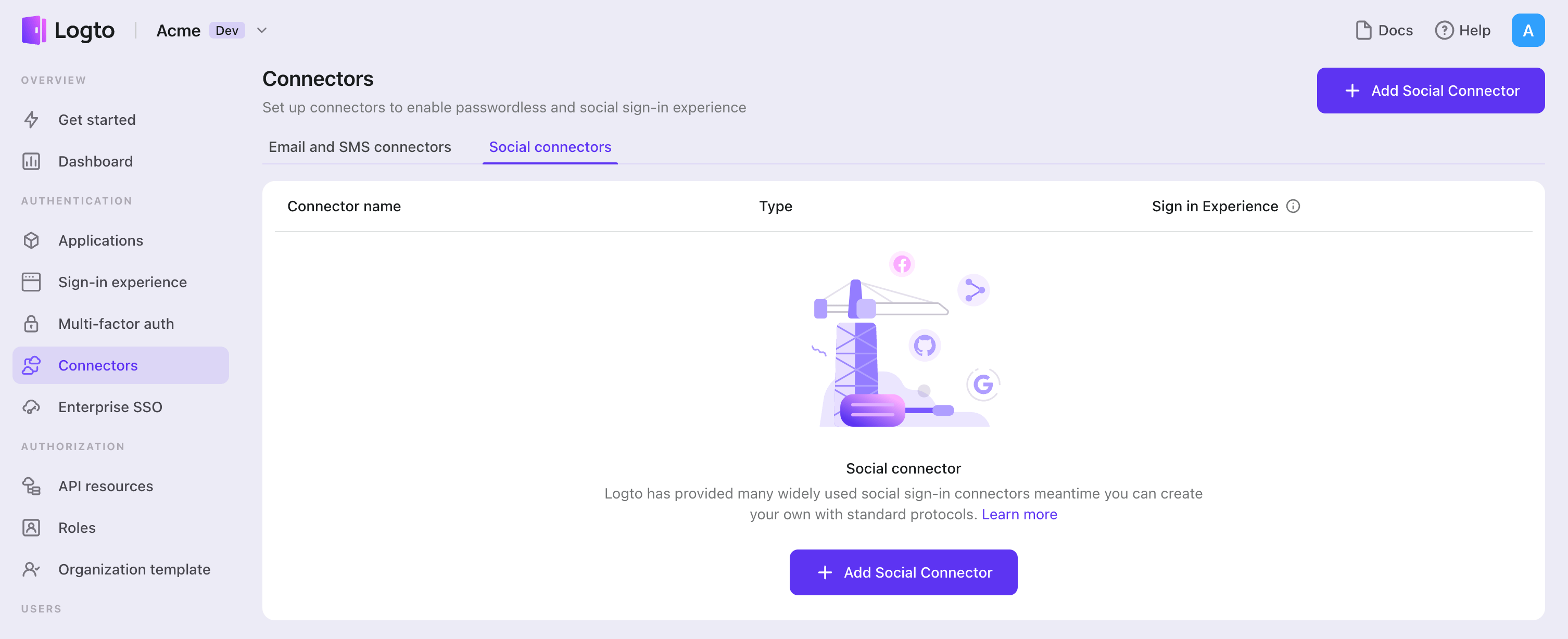
If you are following the in-place Connector guide, you can skip the next section.
Set up GitHub (GitHub App)
Step 1: Create a GitHub App
Before you can use GitHub as an authentication provider, you must create a GitHub App on GitHub to obtain OAuth 2.0 credentials.
- Go to GitHub and sign in with your account, or create a new account if needed.
- Navigate to Settings > Developer settings > GitHub Apps.
- Click New GitHub App to register a new application:
- GitHub App name: Enter a unique name for your app. The name cannot be longer than 34 characters and must be unique across GitHub.
- Homepage URL: Enter your application's homepage URL.
- Callback URL: Copy the Callback URI from your Logto GitHub connector and paste it here. You can add multiple callback URLs if needed. After users sign in with GitHub, they'll be redirected here with an authorization code that Logto uses to complete authentication.
- Expire user authorization tokens: Keep this checked (recommended). This enables token expiration and refresh tokens for enhanced security.
- Request user authorization (OAuth) during installation: Optionally check this to prompt users to authorize your app during installation.
- Webhook: Uncheck Active if you don't need webhook events. For authentication-only use cases, webhooks are typically not required.
- Under Permissions, configure the permissions your app needs (see Step 2 below for details).
- Under Where can this GitHub App be installed?, select Any account if you want users from any GitHub account to use your app for authentication.
- Click Create GitHub App to create the GitHub App.
Unlike OAuth Apps, GitHub Apps use fine-grained permissions instead of broad scopes. You configure permissions in the GitHub dashboard during app creation, and users grant access to specific repositories during authorization.
For more details on setting up GitHub Apps, see Registering a GitHub App.
Step 2: Configure permissions in GitHub
GitHub Apps use fine-grained permissions instead of OAuth scopes. You must configure permissions in the GitHub dashboard when creating or editing your GitHub App. These permissions determine what data your app can access.
Understanding GitHub App permissions
Permissions are categorized into three types:
- Repository permissions: Access to repository-level resources (code, issues, pull requests, etc.)
- Organization permissions: Access to organization-level resources (members, teams, projects, etc.)
- Account permissions: Access to user account data (email, profile, followers, etc.)
For each permission, you can select:
- No access: The app cannot access this resource
- Read-only: The app can read but not modify this resource
- Read & write: The app can read and modify this resource
Recommended permissions for authentication
For basic "Sign in with GitHub" functionality, configure these minimum Account permissions:
| Permission | Access level | Purpose |
|---|---|---|
| Email addresses | Read-only | Get user's email address for account creation |
GitHub Apps have implicit access to read public profile information when acting on behalf of a user. You don't need to explicitly request permission for basic profile data like username, avatar, and public profile URL.
Additional permissions for API access
If your application needs to access GitHub APIs beyond authentication, add the corresponding permissions in the GitHub dashboard. Here are some common examples:
| Permission type | Permission | Access level | Use case |
|---|---|---|---|
| Repository | Contents | Read-only / Read & write | Access repository files and code |
| Repository | Issues | Read & write | Create and manage issues |
| Repository | Pull requests | Read & write | Create and manage pull requests |
| Repository | Metadata | Read-only | Access repository metadata (required for many operations) |
| Organization | Members | Read-only | List organization members |
| Account | Followers | Read-only | Access user's followers and following |
This is not an exhaustive list — GitHub Apps support many more fine-grained permissions. See Permissions required for GitHub Apps for the complete list.
Unlike OAuth Apps where you configure scopes in the Logto connector, GitHub App permissions are managed entirely in the GitHub dashboard. You can leave the Scope field empty in your Logto GitHub connector — it's not needed because GitHub Apps don't use traditional OAuth scopes.
Simply configure the permissions you need in GitHub, and users will be prompted to grant access during authorization.
Step 3: Configure your Logto connector
After creating the GitHub App, you'll be redirected to its settings page where you can obtain the credentials.
- On your GitHub App's settings page, copy the Client ID and paste it into the
clientIdfield in Logto. - Under Client secrets, click Generate a new client secret. Copy the generated secret and paste it into the
clientSecretfield in Logto. - Click Save and Done in Logto to connect your identity system with GitHub.
Keep your Client secret secure and never expose it in client-side code. GitHub client secrets cannot be recovered if lost - you'll need to generate a new one.
The Client ID for a GitHub App is different from the App ID. Make sure to use the Client ID (shown as "Client ID" on the settings page), not the App ID.
Step 4: General settings
Here are some general settings that won't block the connection to GitHub but may affect the end-user authentication experience.
Sync profile information
In the GitHub connector, you can configure how profile information is synced from GitHub user info to the Logto user profile, including name, avatar, and email. Choose from the following options:
- Only sync at sign-up: Profile info is fetched once when the user first signs in.
- Always sync at sign-in: Profile info is updated every time the user signs in.
Store tokens to access GitHub APIs (Optional)
If you want to access GitHub APIs and perform actions with user authorization (whether via social sign-in or account linking), enable token storage in Logto:
- Configure the required permissions in your GitHub App settings (Step 2).
- Enable Store tokens for persistent API access in the Logto GitHub connector. Logto will securely store both the access token and refresh token in the Secret Vault.
Since GitHub Apps always issue refresh tokens, Logto stores both tokens automatically. The access token expires after 8 hours, but Logto can use the refresh token to obtain new access tokens, ensuring uninterrupted API access for up to 6 months.
Step 5: Test your integration (Optional)
Before going live, test your GitHub App integration:
- Use the connector in a Logto development tenant.
- Verify that users can sign in with GitHub.
- Check that users are prompted for the correct permissions during authorization.
- If you enabled token storage, verify that access tokens (and refresh tokens) are stored correctly.
- Test API calls using the stored tokens to ensure permissions are working as expected.
GitHub Apps work with any GitHub user account immediately - there's no need for test users or app approval like some other platforms. However, if your app is installed on an organization, organization owners may need to approve the installation.
Save your configuration
Double check you have filled out necessary values in the Logto connector configuration area. Click "Save and Done" (or "Save changes") and the GitHub (GitHub App) connector should be available now.
Enable GitHub (GitHub App) connector in Sign-in Experience
Once you create a social connector successfully, you can enable it as a "Continue with GitHub (GitHub App)" button in Sign-in Experience.
- Navigate to Console > Sign-in experience > Sign-up and sign-in.
- (Optional) Choose "Not applicable" for sign-up identifier if you need social login only.
- Add configured GitHub (GitHub App) connector to the "Social sign-in" section.
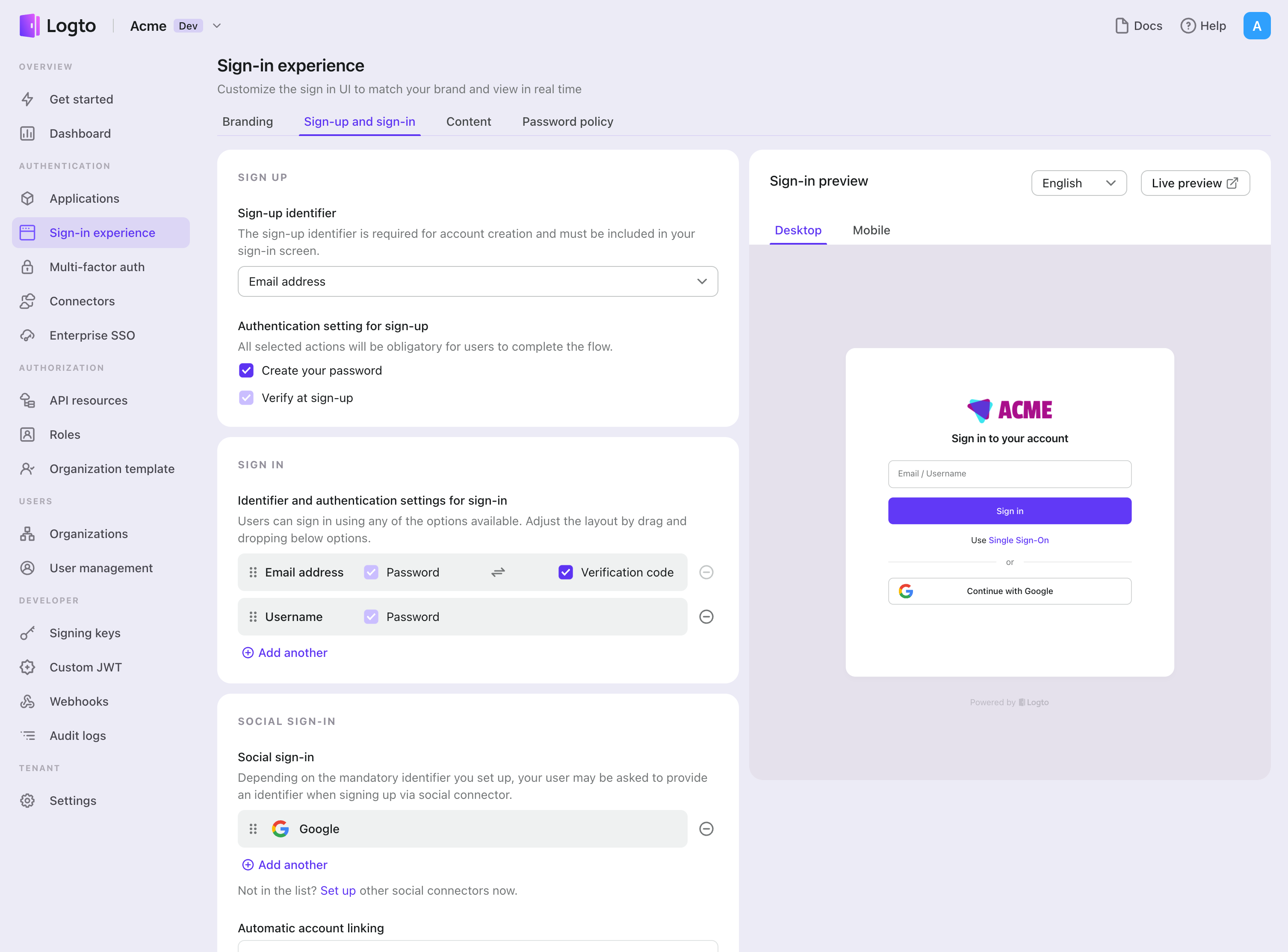
Testing and Validation
Return to your Flutter app. You should now be able to sign in with GitHub (GitHub App). Enjoy!
Further readings
End-user flows: Logto provides a out-of-the-box authentication flows including MFA and enterprise SSO, along with powerful APIs for flexible implementation of account settings, security verification, and multi-tenant experience.
Authorization: Authorization defines the actions a user can do or resources they can access after being authenticated. Explore how to protect your API for native and single-page applications and implement Role-based Access Control (RBAC).
Organizations: Particularly effective in multi-tenant SaaS and B2B apps, the organization feature enable tenant creation, member management, organization-level RBAC, and just-in-time-provisioning.
Customer IAM series Our serial blog posts about Customer (or Consumer) Identity and Access Management, from 101 to advanced topics and beyond.