Logto is an Auth0 alternative designed for modern apps and SaaS products. It offers both Cloud and Open-source services to help you quickly launch your identity and management (IAM) system. Enjoy authentication, authorization, and multi-tenant management all in one.
We recommend starting with a free development tenant on Logto Cloud. This allows you to explore all the features easily.
In this article, we will go through the steps to quickly build the GitHub (GitHub App) sign-in experience (user authentication) with Android (Kotlin / Java) and Logto.
Prerequisites
- A running Logto instance. Check out the introduction page to get started.
- Basic knowledge of Android (Kotlin / Java).
- A usable GitHub (GitHub App) account.
Create an application in Logto
Logto is based on OpenID Connect (OIDC) authentication and OAuth 2.0 authorization. It supports federated identity management across multiple applications, commonly called Single Sign-On (SSO).
To create your Native app application, simply follow these steps:
- Open the Logto Console. In the "Get started" section, click the "View all" link to open the application frameworks list. Alternatively, you can navigate to Logto Console > Applications, and click the "Create application" button.
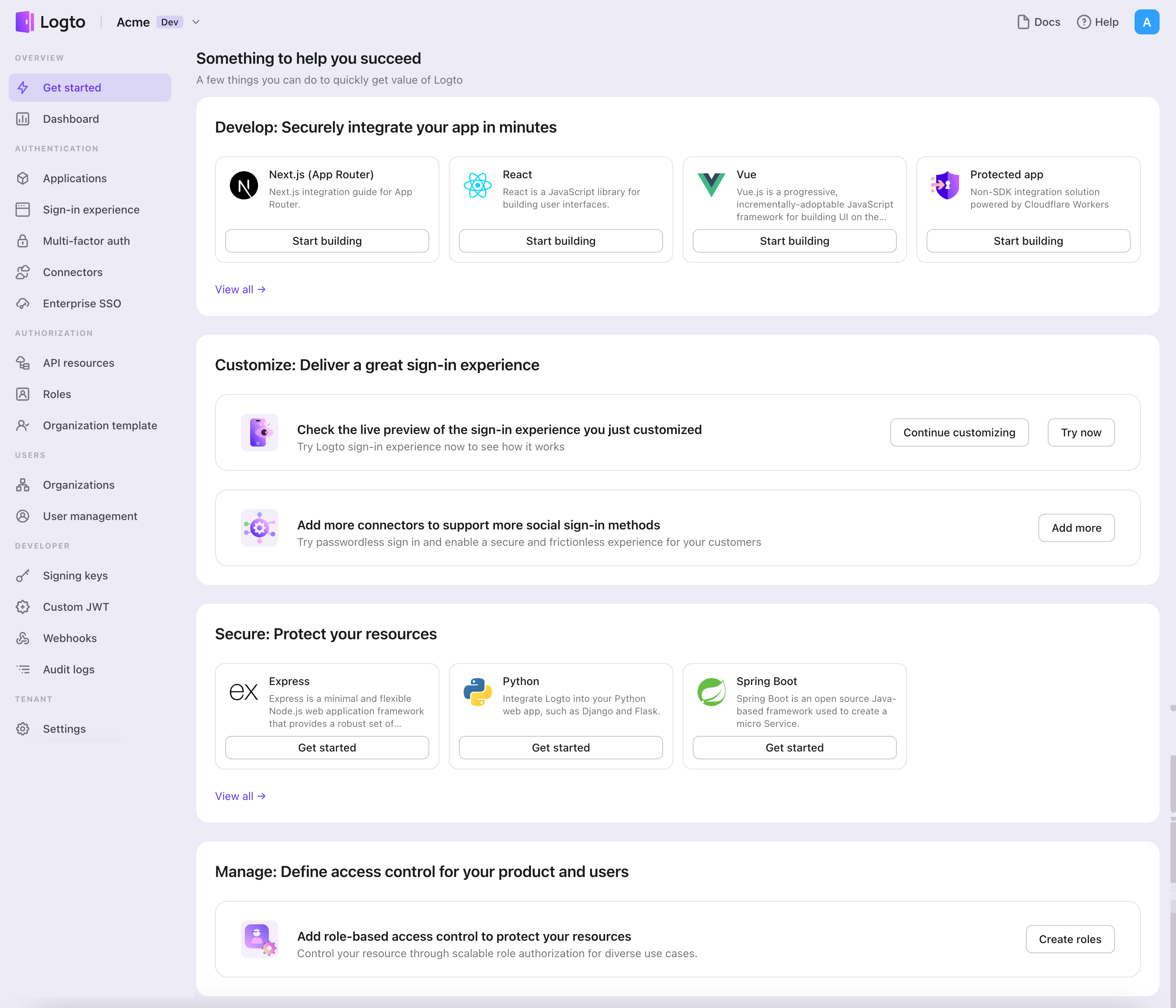
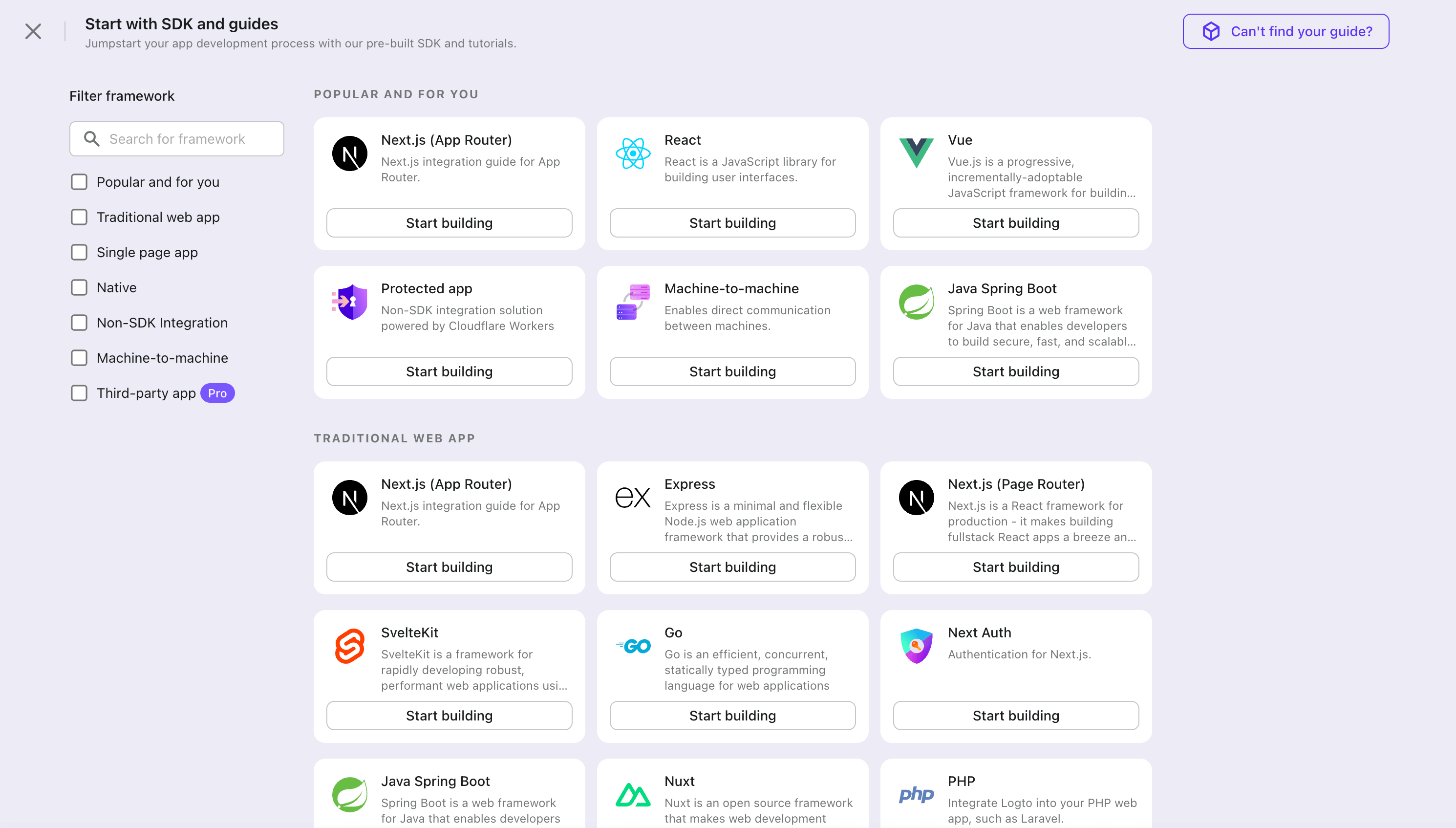
- In the opening modal, click the "Native app" section or filter all the available "Native app" frameworks using the quick filter checkboxes on the left. Click the "Android" framework card to start creating your application.
- Enter the application name, e.g., "Bookstore," and click "Create application".
🎉 Ta-da! You just created your first application in Logto. You'll see a congrats page which includes a detailed integration guide. Follow the guide to see what the experience will be in your application.
Integrate Android with Logto
- The example is based on View system and View Model, but the concepts are the same when using Jetpack Compose.
- The example is written in Kotlin, but the concepts are the same for Java.
- Both Kotlin and Java sample projects are available on our SDK repository.
- The tutorial video is available on our YouTube channel.
Installation
The minimum supported Android API level of Logto Android SDK is level 24.
Before you install Logto Android SDK, ensure mavenCentral() is added to your repository configuration in the Gradle project build file:
dependencyResolutionManagement {
  repositories {
    mavenCentral()
  }
}
Add Logto Android SDK to your dependencies:
- Kotlin
- Groovy
dependencies {
  implementation("io.logto.sdk:android:1.1.3")
}
dependencies {
  implementation 'io.logto.sdk:android:1.1.3'
}
Since the SDK needs internet access, you need to add the following permission to your AndroidManifest.xml file:
<?xml version="1.0" encoding="utf-8"?>
<manifest xmlns:android="http://schemas.android.com/apk/res/android"
  xmlns:tools="http://schemas.android.com/tools">

  <!-- add internet permission -->
  <uses-permission android:name="android.permission.INTERNET" />

  <!-- other configurations... -->
</manifest>
Init LogtoClient
Create a LogtoViewModel.kt and init LogtoClient in this view model:
//...with other imports
import io.logto.sdk.android.LogtoClient
import io.logto.sdk.android.type.LogtoConfig

class LogtoViewModel(application: Application) : AndroidViewModel(application) {
    private val logtoConfig = LogtoConfig(
          endpoint = "<your-logto-endpoint>",
          appId = "<your-app-id>",
          scopes = null,
          resources = null,
          usingPersistStorage = true,
    )

    private val logtoClient = LogtoClient(logtoConfig, application)

    companion object {
        val Factory: ViewModelProvider.Factory = object : ViewModelProvider.Factory {
            @Suppress("UNCHECKED_CAST")
            override fun <T : ViewModel> create(
                modelClass: Class<T>,
                extras: CreationExtras
            ): T {
                // Get the Application object from extras
                val application = checkNotNull(extras[APPLICATION_KEY])
                return LogtoViewModel(application) as T
            }
        }
    }
}
then, create a LogtoViewModel for your MainActivity.kt:
//...with other imports
class MainActivity : AppCompatActivity() {
    private val logtoViewModel: LogtoViewModel by viewModels { LogtoViewModel.Factory }
    //...other codes
}
Configure redirect URI
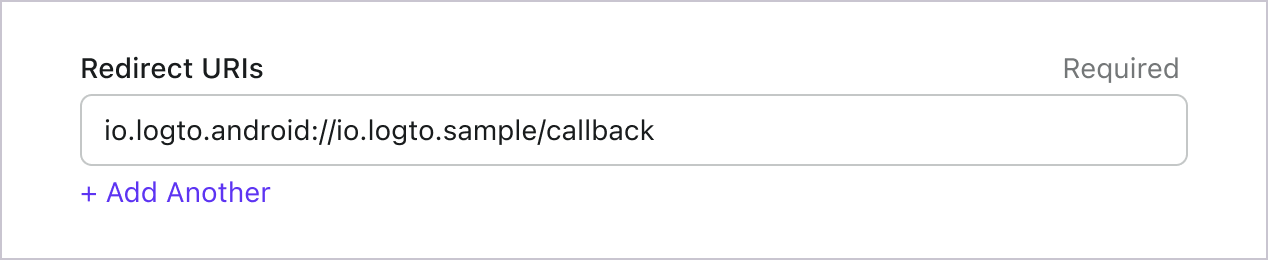
Let's switch to the Application details page of Logto Console. Add a Redirect URI io.logto.android://io.logto.sample/callback and click "Save changes".
Implement sign-in and sign-out
Before calling logtoClient.signIn, make sure you have correctly configured Redirect URI
in Admin Console.
You can use logtoClient.signIn to sign in the user and logtoClient.signOut to sign out the user.
For example, in an Android app:
//...with other imports
class LogtoViewModel(application: Application) : AndroidViewModel(application) {
    // ...other codes

    // Add a live data to observe the authentication status
    private val _authenticated = MutableLiveData(logtoClient.isAuthenticated)
    val authenticated: LiveData<Boolean>
        get() = _authenticated

    fun signIn(context: Activity) {
        logtoClient.signIn(context, "io.logto.android://io.logto.sample/callback") { logtoException ->
            logtoException?.let { println(it) }
            // Update the live data
            _authenticated.postValue(logtoClient.isAuthenticated)
        }
    }

    fun signOut() {
        logtoClient.signOut { logtoException ->
            logtoException?.let { println(it) }
            // Update the live data
            _authenticated.postValue(logtoClient.isAuthenticated)
        }
    }
}
Then call the signIn and signOut methods in your activity:
class MainActivity : AppCompatActivity() {
    override fun onCreate(savedInstanceState: Bundle?) {
        //...other codes

        // Assume you have a button with id "sign_in_button" in your layout
        val signInButton = findViewById<Button>(R.id.sign_in_button)
        signInButton.setOnClickListener {
            logtoViewModel.signIn(this)
        }

        // Assume you have a button with id "sign_out_button" in your layout
        val signOutButton = findViewById<Button>(R.id.sign_out_button)
        signOutButton.setOnClickListener {
            if (logtoViewModel.authenticated) { // Check if the user is authenticated
                logtoViewModel.signOut()
            }
        }

        // Observe the authentication status to update the UI
        logtoViewModel.authenticated.observe(this) { authenticated ->
            if (authenticated) {
                // The user is authenticated
                signInButton.visibility = View.GONE
                signOutButton.visibility = View.VISIBLE
            } else {
                // The user is not authenticated
                signInButton.visibility = View.VISIBLE
                signOutButton.visibility = View.GONE
            }
        }

    }
}
Checkpoint: Test your application
Now, you can test your application:
- Run your application, you will see the sign-in button.
- Click the sign-in button, the SDK will init the sign-in process and redirect you to the Logto sign-in page.
- After you signed in, you will be redirected back to your application and see the sign-out button.
- Click the sign-out button to clear token storage and sign out.
Add GitHub (GitHub App) connector
To enable quick sign-in and improve user conversion, connect with Android as an identity provider. The Logto social connector helps you establish this connection in minutes by allowing several parameter inputs.
To add a social connector, simply follow these steps:
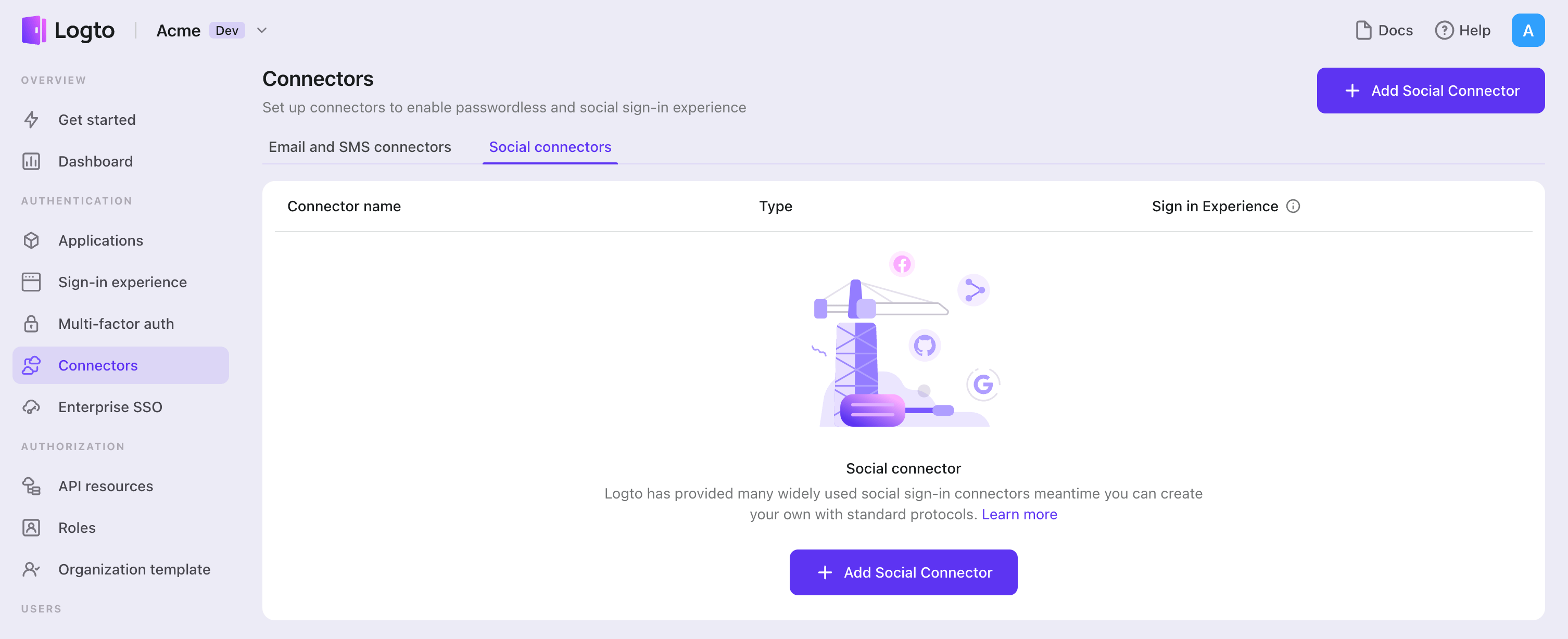
- Navigate to Console > Connectors > Social Connectors.
- Click "Add social connector" and select "GitHub (GitHub App)".
- Follow the README guide and complete required fields and customize settings.
If you are following the in-place Connector guide, you can skip the next section.
Set up GitHub (GitHub App)
Step 1: Create a GitHub App
Before you can use GitHub as an authentication provider, you must create a GitHub App on GitHub to obtain OAuth 2.0 credentials.
- Go to GitHub and sign in with your account, or create a new account if needed.
- Navigate to Settings > Developer settings > GitHub Apps.
- Click New GitHub App to register a new application:
- GitHub App name: Enter a unique name for your app. The name cannot be longer than 34 characters and must be unique across GitHub.
- Homepage URL: Enter your application's homepage URL.
- Callback URL: Copy the Callback URI from your Logto GitHub connector and paste it here. You can add multiple callback URLs if needed. After users sign in with GitHub, they'll be redirected here with an authorization code that Logto uses to complete authentication.
- Expire user authorization tokens: Keep this checked (recommended). This enables token expiration and refresh tokens for enhanced security.
- Request user authorization (OAuth) during installation: Optionally check this to prompt users to authorize your app during installation.
- Webhook: Uncheck Active if you don't need webhook events. For authentication-only use cases, webhooks are typically not required.
- Under Permissions, configure the permissions your app needs (see Step 2 below for details).
- Under Where can this GitHub App be installed?, select Any account if you want users from any GitHub account to use your app for authentication.
- Click Create GitHub App to create the GitHub App.
Unlike OAuth Apps, GitHub Apps use fine-grained permissions instead of broad scopes. You configure permissions in the GitHub dashboard during app creation, and users grant access to specific repositories during authorization.
For more details on setting up GitHub Apps, see Registering a GitHub App.
Step 2: Configure permissions in GitHub
GitHub Apps use fine-grained permissions instead of OAuth scopes. You must configure permissions in the GitHub dashboard when creating or editing your GitHub App. These permissions determine what data your app can access.
Understanding GitHub App permissions
Permissions are categorized into three types:
- Repository permissions: Access to repository-level resources (code, issues, pull requests, etc.)
- Organization permissions: Access to organization-level resources (members, teams, projects, etc.)
- Account permissions: Access to user account data (email, profile, followers, etc.)
For each permission, you can select:
- No access: The app cannot access this resource
- Read-only: The app can read but not modify this resource
- Read & write: The app can read and modify this resource
Recommended permissions for authentication
For basic "Sign in with GitHub" functionality, configure these minimum Account permissions:
| Permission | Access level | Purpose |
|---|---|---|
| Email addresses | Read-only | Get user's email address for account creation |
GitHub Apps have implicit access to read public profile information when acting on behalf of a user. You don't need to explicitly request permission for basic profile data like username, avatar, and public profile URL.
Additional permissions for API access
If your application needs to access GitHub APIs beyond authentication, add the corresponding permissions in the GitHub dashboard. Here are some common examples:
| Permission type | Permission | Access level | Use case |
|---|---|---|---|
| Repository | Contents | Read-only / Read & write | Access repository files and code |
| Repository | Issues | Read & write | Create and manage issues |
| Repository | Pull requests | Read & write | Create and manage pull requests |
| Repository | Metadata | Read-only | Access repository metadata (required for many operations) |
| Organization | Members | Read-only | List organization members |
| Account | Followers | Read-only | Access user's followers and following |
This is not an exhaustive list — GitHub Apps support many more fine-grained permissions. See Permissions required for GitHub Apps for the complete list.
Unlike OAuth Apps where you configure scopes in the Logto connector, GitHub App permissions are managed entirely in the GitHub dashboard. You can leave the Scope field empty in your Logto GitHub connector — it's not needed because GitHub Apps don't use traditional OAuth scopes.
Simply configure the permissions you need in GitHub, and users will be prompted to grant access during authorization.
Step 3: Configure your Logto connector
After creating the GitHub App, you'll be redirected to its settings page where you can obtain the credentials.
- On your GitHub App's settings page, copy the Client ID and paste it into the
clientIdfield in Logto. - Under Client secrets, click Generate a new client secret. Copy the generated secret and paste it into the
clientSecretfield in Logto. - Click Save and Done in Logto to connect your identity system with GitHub.
Keep your Client secret secure and never expose it in client-side code. GitHub client secrets cannot be recovered if lost - you'll need to generate a new one.
The Client ID for a GitHub App is different from the App ID. Make sure to use the Client ID (shown as "Client ID" on the settings page), not the App ID.
Step 4: General settings
Here are some general settings that won't block the connection to GitHub but may affect the end-user authentication experience.
Sync profile information
In the GitHub connector, you can configure how profile information is synced from GitHub user info to the Logto user profile, including name, avatar, and email. Choose from the following options:
- Only sync at sign-up: Profile info is fetched once when the user first signs in.
- Always sync at sign-in: Profile info is updated every time the user signs in.
Store tokens to access GitHub APIs (Optional)
If you want to access GitHub APIs and perform actions with user authorization (whether via social sign-in or account linking), enable token storage in Logto:
- Configure the required permissions in your GitHub App settings (Step 2).
- Enable Store tokens for persistent API access in the Logto GitHub connector. Logto will securely store both the access token and refresh token in the Secret Vault.
Since GitHub Apps always issue refresh tokens, Logto stores both tokens automatically. The access token expires after 8 hours, but Logto can use the refresh token to obtain new access tokens, ensuring uninterrupted API access for up to 6 months.
Step 5: Test your integration (Optional)
Before going live, test your GitHub App integration:
- Use the connector in a Logto development tenant.
- Verify that users can sign in with GitHub.
- Check that users are prompted for the correct permissions during authorization.
- If you enabled token storage, verify that access tokens (and refresh tokens) are stored correctly.
- Test API calls using the stored tokens to ensure permissions are working as expected.
GitHub Apps work with any GitHub user account immediately - there's no need for test users or app approval like some other platforms. However, if your app is installed on an organization, organization owners may need to approve the installation.
Save your configuration
Double check you have filled out necessary values in the Logto connector configuration area. Click "Save and Done" (or "Save changes") and the GitHub (GitHub App) connector should be available now.
Enable GitHub (GitHub App) connector in Sign-in Experience
Once you create a social connector successfully, you can enable it as a "Continue with GitHub (GitHub App)" button in Sign-in Experience.
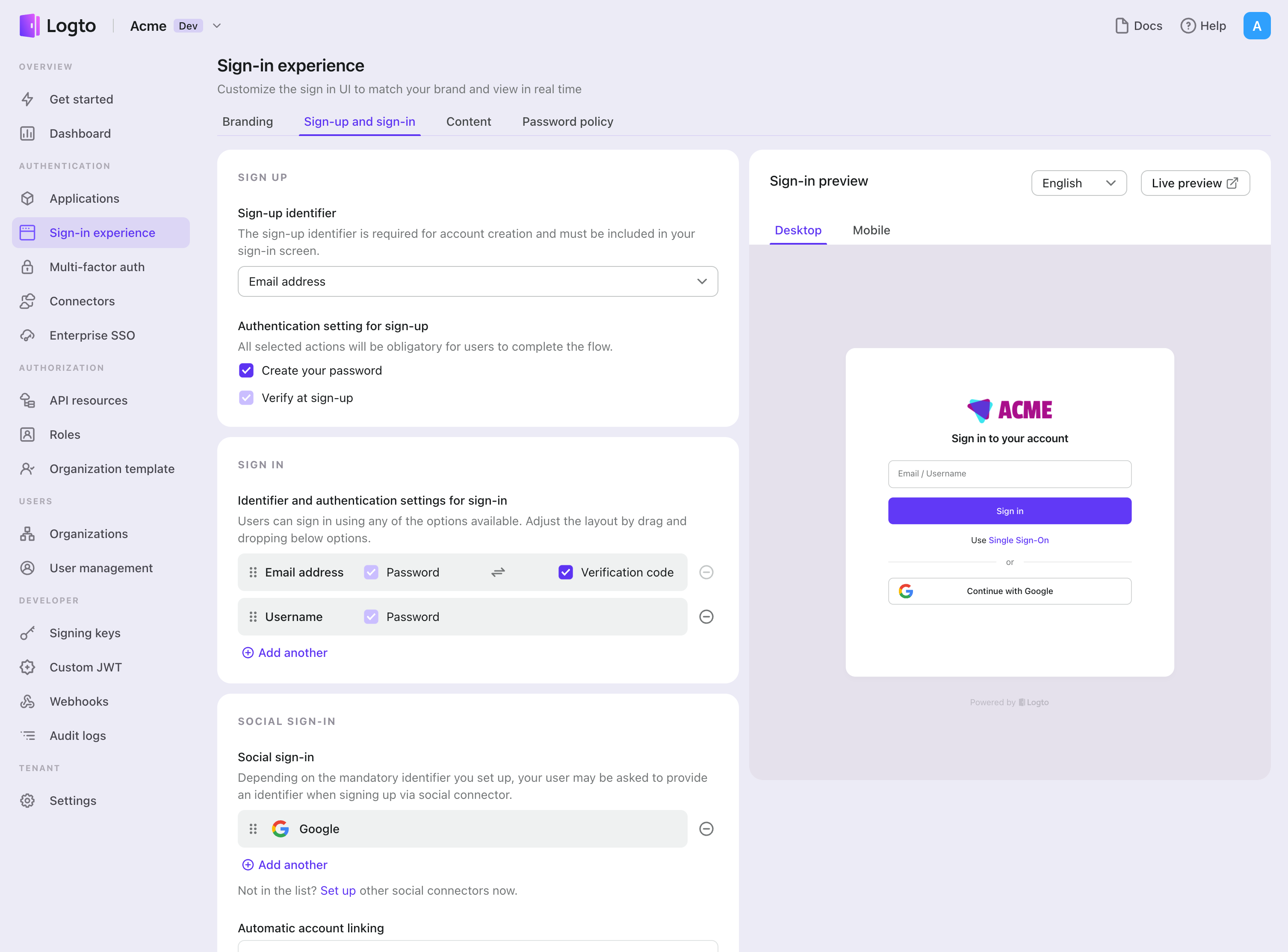
- Navigate to Console > Sign-in experience > Sign-up and sign-in.
- (Optional) Choose "Not applicable" for sign-up identifier if you need social login only.
- Add configured GitHub (GitHub App) connector to the "Social sign-in" section.
Testing and Validation
Return to your Android (Kotlin / Java) app. You should now be able to sign in with GitHub (GitHub App). Enjoy!
Further readings
End-user flows: Logto provides a out-of-the-box authentication flows including MFA and enterprise SSO, along with powerful APIs for flexible implementation of account settings, security verification, and multi-tenant experience.
Authorization: Authorization defines the actions a user can do or resources they can access after being authenticated. Explore how to protect your API for native and single-page applications and implement Role-based Access Control (RBAC).
Organizations: Particularly effective in multi-tenant SaaS and B2B apps, the organization feature enable tenant creation, member management, organization-level RBAC, and just-in-time-provisioning.
Customer IAM series Our serial blog posts about Customer (or Consumer) Identity and Access Management, from 101 to advanced topics and beyond.